⏰ Top 10 Bixby Commands for Reminders
-
“Hi Bixby, remind me to call mom at 6 PM.”
→ Sets a time-based reminder for a specific task. -
“Hi Bixby, remind me to take my medicine every day at 9 AM.”
→ Creates a repeating daily reminder. -
“Hi Bixby, remind me to buy milk when I get to the grocery store.”
→ Sets a location-based reminder (uses GPS to trigger). -
“Hi Bixby, show me my reminders.”
→ Displays your current and upcoming reminders. -
“Hi Bixby, delete my reminder to call mom.”
→ Removes a specific reminder. -
“Hi Bixby, postpone my reminder by 10 minutes.”
→ Delays an active or upcoming reminder. -
“Hi Bixby, mark my reminder as done.”
→ Marks a completed task as finished. -
“Hi Bixby, remind me to check the oven in 20 minutes.”
→ Creates a countdown-based reminder (great for cooking or tasks). -
“Hi Bixby, remind me to send the report every Monday at 8 AM.”
→ Sets a weekly recurring reminder. -
“Hi Bixby, create a reminder to water the plants tomorrow morning.”
→ Natural language command to create a next-day reminder.
✅ Bonus Tip:
All reminders sync with the Samsung Reminder app, and can also appear on your Galaxy Watch, TV, or in Bixby Routines for automation.
In this fast-paced society, reminders are an absolute necessity. The good news is that Bixby takes reminders to another level by letting you set reminders with your voice. You can even add reminders to some of your most-used apps, like Phone or Messages.
Access Bixby Reminder
Reminder is an awesome and handy feature, but it may seem hidden if you don’t look closely. Once you enable it, it’ll be right on your Apps screen.
-
-
Depending on your settings, press and hold the Bixby or Side key, and then tell Bixby to set a reminder. Type in your reminder, and then tap Save.
-
Next, tap More in Reminder app. The Reminder app will open and add a shortcut to your apps.
-
In the Reminder app, you can change a reminder’s details. Select your desired reminder, and then tap Edit. Tap Time to edit your reminder details. You can even adjust the strength of the reminder alert by selecting Light, Medium, or Strong.
Note: Reminders that are set to Light will not show an alert on the screen.
-

Create reminders with Bixby
When you’re knee-deep in a hectic day, you may not remember to hit every errand on your list. Just have Bixby set a reminder so you won’t forget next time.
Press and hold the Bixby or Side key depending on your settings, and say “Create a reminder.” Bixby will instantly open the Reminder app, where you can enter the information manually.
Or, you can tell Bixby the exact task and time for the reminder. For example, you could say, “Remind me to go grocery shopping at 5 p.m.”
You can can even set repeating reminders like “Remind me to file my TPS report at 4 p.m. every Friday,” so you’ll never miss a deadline.

Complete or delete reminders
Bixby loves creating Reminders, but it can’t complete or delete them by itself. You’ll need to go into the Reminder app to remove your reminders.
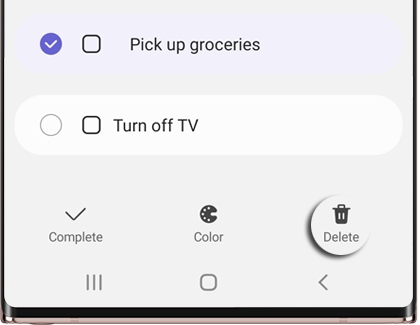
To complete a reminder, navigate to and open the Reminder app. Then, touch and hold the reminder you want to complete. Tap Complete, and the reminder will be removed from your list. You can also complete a reminder by tapping the box to the left of the reminder.
To delete a reminder, touch and hold the reminder, and then tap Delete. Tap Delete again to confirm.
Add Bixby reminders to apps
Ever get a call or a message when you’re super busy, and then accidentally forget about it later? Don’t sweat it. Bixby Reminder is built into certain apps, like Phone and Messages, so you won’t ever forget something important again.
Just navigate to your favorite apps, and then look for the Reminder icon or Send to Reminder.
Here are the different apps that can use Bixby Reminder and how to create a Reminder for them:
-
Phone: You can create a reminder when you reject a call, so you can call them back. You will see the reminder an hour later. When receiving a call, swipe up on Send message. Tap Add reminder, and then select a message you would like to send. A reminder will be automatically saved.
-
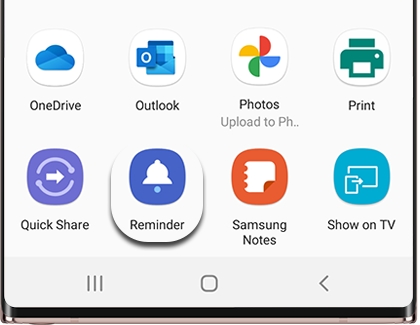
Other apps: You can also save text and images to Reminder by using the Share option in apps, such as Internet and Gallery. Just select the desired content, tap Share, and then select Reminder from the list of sharing options.